Programming Manual PL12EN-1001 2011-04

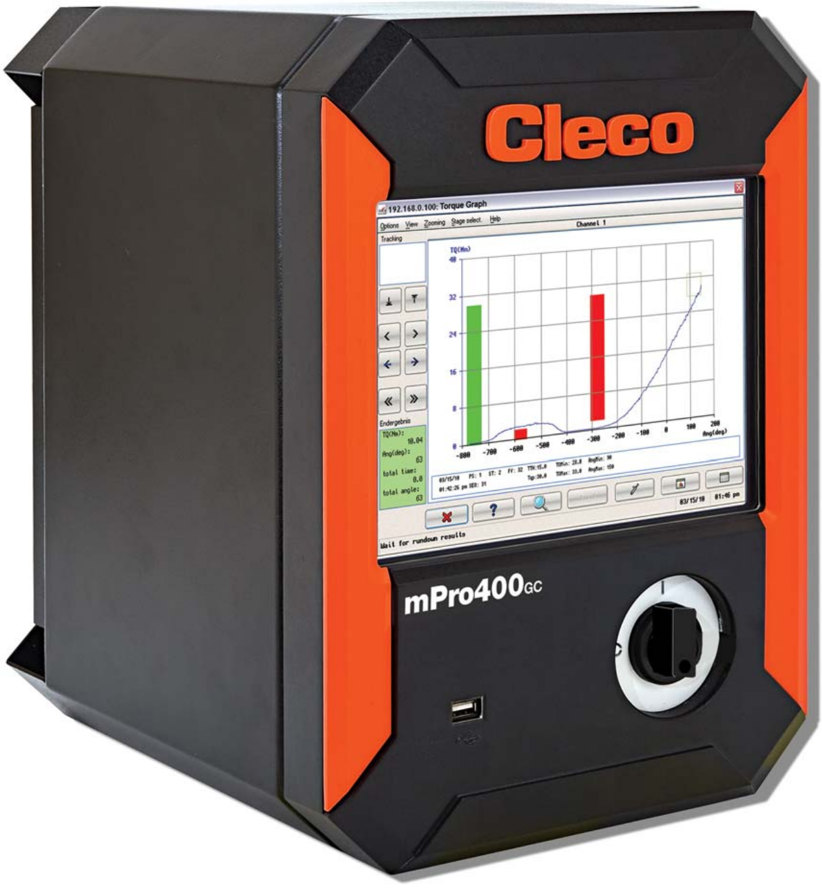
mPro400GC
Global Controller
For additional product information visit our website at http://www.apextoolgroup.com
About this programming manual
This programming manual is the -- original programming manual -- and is intended for all persons who configure settings on the mPro400GC controller.
The programming manual does the following:
- It provides important instructions for safe and effective operation.
- It describes the function and operation of the mPro400GC controller.
- It points out options.
The following documents provide additional information for the operation and service of the mPro400GC controller.
Further information on complete software configuration is contained in the
- Parts manual, no. PL12-1000EN
- Quickstart, no. PL12-1004
- Recovery Installation
- System description, Fastening technology, no. P1730E
Symbols in the text:
| italics | Identifies menu items such as Diagnosis |
|---|---|
| > | Identifies the selection of a menu item from the menu such as File > Print |
| <…> | Identifies elements such as buttons, push button or external keyboard input, e.g. <F5> |
| Courier | Identifies elements such as input fields, checkboxes, radio buttons or drop-down menus. Indicates the name of paths and files, e.g. setup.exe |
| / | Separates the subdirectories of file paths, e.g. file/print (OS9 operating system) |
| • | Identifies lists |
| ➔ | Identifies instructions to be followed |
Disclaimer:
Apex Tool Group reserves the right to modify, supplement or improve this document or the product without prior notice. This document may not be reproduced in whole or in part in any way, shape or form, or copied to another natural or machine-readable language or to a data carrier, whether electronic, mechanical, optical or otherwise, without the express permission of Apex Tool Group.
DGD and Cleco are trademarks of the Apex Tool Group Division.

PL12EN-1001 2011-04
en00d441.fm, 20.07.2011
Contents
| 1 | Set-Up Guide | 6 |
|---|---|---|
| 1.1 | Controller description............................................................................ | 6 |
| 1.2 | General Information.............................................................................. | 7 |
| 1.3 | Checking your unit................................................................................ | 7 |
| 1.4 | Software................................................................................................ | 7 |
| 1.5 | Installing the Unit .................................................................................. | 7 |
| 1.6 | Mounting the Controller ........................................................................ | 8 |
| 1.7 | Making Connections to the Controller................................................... | 9 |
| 1.8 | Accepting a Corded Tool .................................................................... | 10 |
| 1.9 | Accepting a LiveWire Tool.................................................................. | 12 |
| 1.10 | Programming a Basic Fastening Strategy .......................................... | 15 |
| 1.11 | Auto Programming (Torque Control / Angle Monitor Only)................. | 15 |
| 1.12 | Manual Programming ......................................................................... | 16 |
| 2 | Controller specifications | 18 |
| 2.1 | Technical Data.................................................................................... | 21 |
| 3 | Programming | 25 |
| 3.1 | Navigator ............................................................................................ | 25 |
| 3.2 | Basic................................................................................................... | 26 |
| 3.3 | Standard ............................................................................................. | 28 |
| 3.4 | Advanced............................................................................................ | 36 |
| 3.5 | Run Screen......................................................................................... | 41 |
| 3.6 | Communications................................................................................. | 43 |
| 3.7 | Tool Setup .......................................................................................... | 48 |
| 3.8 | Archive................................................................................................ | 50 |
| 3.9 | Diagnostics ......................................................................................... | 51 |
| 3.10 | Utilities ................................................................................................ | 53 |
| 3.11 | Administration..................................................................................... | 54 |
| 4 | Troubleshooting | 59 |
| 5 | Glossary | 63 |
PL12EN-1001_2011-04_mPro400GC_V1.2.0_aIVZ.fm, 20.07.2011
PL12EN-1001 2011-04
PL12EN-1001 2011-04
PL12EN-1001_2011-04_mPro400GC_V1.2.0_aIVZ.fm, 20.07.2011
Workplace safety symbols
Warning notes are identified by a signal word and a pictogram:
- The signal word describes the severity and the probability of the impending danger.
- The pictogram describes the type of danger.
Observe these notes and proceed with special care in the situations described. Pass all safety instructions on to other operators. In addition to the safety instructions in these programming instructions, all local safety and accident prevention rules must be observed.
Indicates a potentially hazardous situation which, if not avoided, could result in death or serious injury.
Indicates a potentially hazardous situation which, if not avoided, may result in minor or moderate injury or property and environmental damage. If this warning is not observed, injuries, property or environmental damage may occur.
This pictogram identifies all references to potential electrical shock, alerting of hazards to life and health of personnel.
This sign warns of a possibly damaging situation.
If the note is not adhered to, the product or parts of it may be damaged.
General notes
include application tips and useful information but no hazard warnings.
WARNING!
CAUTION!
ATTENTION!
NOTE
en01d441_bedingt.fm, 20.07.2011
PL12EN-1001 2011-04
Set-Up Guide
1 Set-Up Guide
1.1 Controller description
The mPro400GC product line consists of three controllers; Master, Primary and Secondary.
- Primary - Controls up to sixteen (16) tools. This unit includes a servo. One (1) standard corded handheld or fixtured tool could directly connect. For further corded tools / fixtured spindles are Secondary controllers required.
- Master - Controls up to sixteen (16) tools. This controller does not include a servo. For corded tools / fixtured spindles are Secondary controllers required.
- Secondary - Controls one (1) corded handheld or fixtured tool. Must be used with a Master or Primary controller.
- Limited to 1 tool
- Additional Hardware necessary. For programming mark Advanced > Controller Settings > Display Mpro Button .
| Controller | Order no. | Controls up to (…) tools | Servo included | Tool compatibility |
|---|---|---|---|---|
| Primary | mPro400GC-P | 16 | 1 | 18-48 AirLB 1) Cordless EC tool DGD-Intelligent-Spindles (BTS Series) 2) |
| Master | mPro400GC-M | 16 | - | Cordless EC tool DGD-Intelligent-Spindles (BTS Series) 3) |
| Secondary | mPro400GC-S | 1 | 1 | 18-48 AirLB 1) |
Fig. 1-1 Controller Description
PL12EN-1001 2011-04
en01d441_bedingt.fm, 20.07.2011
Set-Up Guide
1.2 General Information
It is mandatory that national, state and local safety and wiring standards be followed during installation. These standards take precedence over any information presented in this section.
CAUTION!
To avoid the hazard of electrical shock or burn, the following instructions must be adhered to. Failure to follow these instructions may also cause damage to your unit and void existing warranties.
- Do not energize the unit until all connections have been properly made.
- Equipment must be properly grounded before applying power. Units energized by cord and plug must be connected to an approved and properly grounded receptacle.
- All units must be energized by an isolated line.
- The unit must always be closed and secured prior to energizing the unit.
- Ensure the power switch is in the 'off' position prior to connecting the power cord.
Though it is not mandatory, the following instructions are highly recommended for the protected operation of your unit.
- Use oversized feeder lines to reduce electrical noise and voltage drop.
1.3 Checking your unit
Take time to ensure you have the required peripheral equipment and cables necessary to set-up and run your unit. If you do not have all the necessary items, contact your distributor. Refer to Fig. 2-2 for an illustration of your unit.
1.4 Software
Your unit has been preloaded with software and requires no additional software to begin your fastening process. If you are interfacing your unit with an external computer, mPro-Remote interfacing software is required.
1.5 Installing the Unit
Assembly
Each unit is used primarily as a single or multiple tool process/controller/monitor installed in a work station or work area. It may be wall mounted, beam mounted, suspended overhead or pedestal mounted. Always choose a stable location to avoid the possibility of unit damage and/or operator injury through hitting, falling, vibration or inconvenient mounting. All cables attached to the unit should be located and secured so that they cannot cause injury to the operator or to passersby. Like all electrical devices, the control system emit some heat. It should therefore be positioned where air can circulate freely around the housing. Refer to Fig. 2-3 for mounting hole dimensions.
Location considerations
Your unit should be located to allow access to the front panel and connectors. The unit should be installed for unrestricted and comfortable viewing of the LCD screen by the operator. The LCD menu screen, key pad and connectors must be readily accessible for the set-up. Dependent on the peripheral equipment purchased, the unit may be located in a remote position but should still be accessible.
Attachment of accessories and tools should also be considered with the installation locations. Items to be considered are:
en01d441_bedingt.fm, 20.07.2011
PL12EN-1001 2011-04
Set-Up Guide
ATTENTION!
- Location of printer
- Attachment of a data collection unit, if desired.
- Attachment of remote annunciators, socket nest, or remote parameter select.
- Attachment of the unit in a network to a computer.
- Operation convenience/safety - keep cables off the floor or dangling in operator areas.
Power source
The controller requires a power supply connection of:
- 104-126 VAC or 207- 253 VAC / 50-60 Hz single phase / 1A Input current (rated), 16A (peak)
Intended use
The mPro400GC may be used only under the following conditions:
- Industrial EMC limit value class A
- Only cables of type authorized by Apex Tool Group may be used.
- Only accessory parts authorized by Apex Tool Group may be used.
- Unauthorized alterations, repairs and modifications are prohibited for reasons of safety and product liability.
EMC measures
- The filters required to satisfy the EMC regulations are built into the unit.
- The sealed control cabinet and shielded cable provide very good protection against irradiated and radiated interference.
- The tool complies with the following applicable EMC standards:
- -EN 61000-6-2:2005
- -EN 55011:2007
- -EN 61000-4-2:1995 + A1: 1998 + A2: 2001
- -EN 61000-4-3:2006 + A1:2008
- -EN 61000-4-4:2004
- -EN 61000-4-5:2006
- -EN 61000-4-6:2009
- -EN 61000-4-8:1993 + A1: 2001
- -EN 61000-4-11:2004
This is a Class A device. The device may cause signal interference; in this case, the operator may be required to implement suitable EMC measures.
- ➔ It is prohibited to operate the unit unless the control cabinet is closed. The properties of the shielding would change and the noise emission would increase.
1.6 Mounting the Controller
- Loosen the two long mounting screws at the bottom of the controller so the mounting plate can be separated from the controller. See Fig. 2-2.
- Fig. 2-3 illustrates the bolt pattern for hanging the mounting plate on a wall. Note the hole size dimensions so the correct size bolts are chosen. Size ¼' or M6 bolts (4) should fit the mounting plate holes and support the controller.
- Once the mounting plate is installed in its location the controller can be hung on the bracket utilizing the four studs protruding from the back of the controller. Once in place, the controller can be secured at the bottom using the two long screws removed in Step 1.
PL12EN-1001 2011-04
en01d441_bedingt.fm, 20.07.2011
Set-Up Guide
1.7 Making Connections to the Controller
- Connect the cable to the tool.
- Connect the other end of the cable to the controller. The connector at the controller is an Air-LB connector and utilizes a push-pull style connector. Before attempting to attach the cable verify that the collar on the controller connector is pushed towards the controller. If the collar is pulled away from the controller the cable will not connect to the controller. Insert the cable connector and pull the collar away from the controller (towards the cable) to lock the cable in place.
- Insert the power cord into the controller and into a 115 or 230 VAC power source.
- Using the ON/OFF power switch at the front of the controller power the controller ON.
en01d441_bedingt.fm, 20.07.2011
PL12EN-1001 2011-04
Set-Up Guide
1.8 Accepting a Corded Tool
- When the controller has finished booting up it should advance to the Run screen . The screen is a touch screen. At the lower right corner of the screen press <Navigator>.
- Press Navigator Menu > Tool Setup .
PL12EN-1001 2011-04
en01d441_bedingt.fm, 20.07.2011
Set-Up Guide
- Touch the horizontal bar indicating the Primary tool to highlight it. Touch <Tool Settings>.
- Verify that the tool shown is the tool connected. Check the Model number and Serial Number . If the tool is correct press <Accept>. In the screen that appears press <Accept> for that screen. A screen will appear indicating that the settings are being saved. When the save process is complete, the Tool Setup - Tool List screen is displayed. Press <Navigator>. Advance to 1.12 Manual Programming, page 16 for programming instructions.
en01d441_bedingt.fm, 20.07.2011
PL12EN-1001 2011-04
Set-Up Guide
1.9 Accepting a LiveWire Tool
Live wire communication requires three items; Tool, Controller, and Access point. Each item will require an IP address. All the IP addresses will be similar in structure such as 192.168.0.100, 192.168.0.110, 192.168.0.120, etc. The access point will also have a SSID name, which will need to be entered in the controller.
Hardware Connections
- Connect the access point to the controller using the cable provided with the access point. The cable should be a crossover cable. Plug the cable into the X1 Ethernet port. See Fig. 2-2.
- Apply power to the controller and access point.
1.9.1 Network Settings
Controller IP address:
- Select Navigator > Communications > Network Settings .
- If not using server assigned addresses disable DHCP for Card One.
- Enter the IP address and Subnet Mask that will be assigned to the controller.
- Press <Navigator> key to accept entries.
- Click <Accept> on the message screen that appears. The screen will return to the Navigator Menu then begin storing data.
- A message will appear to restart the controller.
PL12EN-1001 2011-04
en01d441_bedingt.fm, 20.07.2011
Set-Up Guide
1.9.2 RF (Radio Frequency) Settings
Setting Up the LiveWire Tool
- Select Navigator Menu > Tool Setup > RF Settings > IRDA Serial. Correct port depending on the port connected to at the base of the controller. (CON 1 and CON 2 are X4 and X5 respectively at the controller.)
- If serial connectivity has been made the SSID , Encryption , and remaining fields will become available for programming. Enter a value for SSID . If Encryption is selected enter a Network Key and confirm it by re-entering it below the initial Network key entry. If DHCP is not being used select Use the following IP address and enter the IP address and Subnet mask. Press <Write RF settings>.
1.9.3 Tool Install
- Select Navigator Menu > Tool Setup . Press the screen at the tool number location you wish to install the tool. The row should highlight in orange. Position 1 is reserved for the Primary or corded tool.
en01d441_bedingt.fm, 20.07.2011
PL12EN-1001 2011-04
Set-Up Guide
- Press <+ Install> and select the LiveWire w/WLAN choice from the popup screen that appears. Enter the Live Wire IP Address for the tool. Without DHCP this should be the same address as entered in Step 2, 1.9.2 RF (Radio Frequency) Settings, page 13. Using DHCP should same IP address as displayed on Tool display entered. Press <OK> and save the settings.
- Select Navigator Menu > Tool Setup > Tool Settings button. Verify the Model Number and Serial Number . If the information is correct press <Accept> at the bottom of the screen. Continue with saving settings.
PL12EN-1001 2011-04
en01d441_bedingt.fm, 20.07.2011
Set-Up Guide
1.10 Programming a Basic Fastening Strategy
Select Navigator Menu > Basic and the Basic Application Builder screen with appear. Verify that the Tool and Application are correct. Select a Fastening strategy , Torque Control/Angle Monitor or Angle Control/Torque Monitor. The parameters can be programmed manually or by pressing <Auto Program>.
1.11 Auto Programming (Torque Control / Angle Monitor Only)
- Before using the Auto Program feature select Navigator Menu > Advanced > Controller Settings and choose the desired Engineering units. Press <Navigator> to save settings.
en01d441_bedingt.fm, 20.07.2011
PL12EN-1001 2011-04
Set-Up Guide
- Select Navigator Menu > Basic > Auto Progr… . Enter the desired final stage torque value using the virtual keypad. Press <Enter> to close the keyboard. Press <OK> from the Auto Program screen. Limits of ±15% will be provided. Parameters can be adjusted if needed. Press <Navigator> button to return to the Navigator Menu and save parameters.
1.12 Manual Programming
- Before programming the application select Navigator Menu > Advanced > Controller Settings and choose the desired Engineering units. Press <Navigator> to save settings.
PL12EN-1001 2011-04
en01d441_bedingt.fm, 20.07.2011
Set-Up Guide
- Touch the Torque High Limit field and a keyboard will appear. Enter the desired High Torque value. Whole numbers do not require decimal points. They will be added automatically. Use the Tab key on the keyboard to move the keyboard to the next field. When finished, press <Enter> on the keyboard. Select <Navigator> and the screen will return to the Navigator Menu and begin saving parameters.
en01d441_bedingt.fm, 20.07.2011
PL12EN-1001 2011-04
Controller specifications
2 Controller specifications
PL12EN-1001 2011-04
en02d441_bedingt.fm, 20.07.2011
Controller specifications
| Position | Description | Position | Description |
|---|---|---|---|
| 1 | System Bus Connector | 8 | Serial Connector #2 |
| 2 | Tool Connector | 9 | Anybus Fieldbus |
| 3 | Power Connection | 10 | Serial Connector #1 |
| 4 | Mounting Bracket Screw | 11 | USB ports (2) |
| 5 | Mounting Bracket Screw | 12 | Ethernet Connector #2 |
| 6 | I/O Connectors | 13 | Ethernet Connector #1 |
| 7 | Anybus Fieldbus |
en02d441_bedingt.fm, 20.07.2011
PL12EN-1001 2011-04
Controller specifications
PL12EN-1001 2011-04
en02d441_bedingt.fm, 20.07.2011
Controller specifications
Technical Data
Housing
The Global Controller is factory sealed with external access to all connectors. The front of the unit has a USB and power switch.
On the back of the enclosure is a cover plate that can be removed to access the Compact Flash card which contains all program data. This secondary level of access requires removing the controller from the mounting plate.
All other connectors are located on the bottom of the enclosure. The mounting bracket has been designed to also assist with cable management.
| Model | Weight* | Width | Height | Depth | ||||
|---|---|---|---|---|---|---|---|---|
| lb | kg | in | mm | in | mm | in | mm | |
| mPro400GC | 31.5 | 14.5 | 10.5 | 267 | 15 | 381 | 11.4 | 290 |
Primary/Master Configuration
Display
- 10.4" TFT Liquid Crystal Display
- Touchscreen
- 800 x 600 resolution
Keyboard
No separate keypad is required. The touchscreen will provide a keyboard image on the screen that can be used for alphanumeric entry. A USB keyboard can also be connected to the unit and used for typing.
Ports
- Compact Flash - accessed through the back of the enclosure
- Any bus CC
- 2 x RS232 Serial Ports
- 3 x USB 2.0 Ports
- 2 x 10/100MBit RJ45 Ethernet Ports
Discrete I/O
- 8 inputs / 8 Outputs / 2 +24Vdc / 2 GND
- Output Current: 500 mA per output, 2000 mA total
en02d441_bedingt.fm, 20.07.2011
PL12EN-1001 2011-04
Controller specifications
Fig. 2-4 Primary / Master Pin Configuration
| Pin # | I/O | Description | Pin # | I/O | Description |
|---|---|---|---|---|---|
| 12 | Out | GND2 | 24 | Out | GND2 |
| 11 | In | Common GND | 23 | In | Common GND |
| 10 | Output | O 03 | 22 | Output | O 07 |
| 9 | Output | O 02 | 21 | Output | O 06 |
| 8 | Output | O 01 | 20 | Output | O 05 |
| 7 | Output | O 00 | 19 | Output | O 04 |
| 6 | Input | I 03 | 18 | Input | I 07 |
| 5 | Input | I 02 | 17 | Input | I 06 |
| 4 | Input | I 01 | 16 | Input | I 05 |
| 3 | Input | I 00 | 15 | Input | I 04 |
| 2 | In | Output Common O0-O3 | 14 | In | Output Common O4-O7 |
| 1 | Out | +24 V2 | 13 | Out | +24 V2 |
System Bus Connection
PL12EN-1001 2011-04
en02d441_bedingt.fm, 20.07.2011
Controller specifications
Note: The Primary configuration has an output connector only. The Secondary and Master configurations have both an input and output connector.
AC power supply
- 104-126 VAC or 207-253 VAC
- 50-60 Hz single phase
- 1 A Input current (rated), 16 A (peak)
2.1.3 Secondary Configuration
Fig. 2-6 Secondary Pin Configuration
| Pin # | I/O | Description | Pin # | I/O | Description |
|---|---|---|---|---|---|
| 12 | Out | Common GND2 | 24 | Out | Common GND |
| 11 | In | Common GND | 23 | In | Common GND |
| 10 | Output | O 03 | 22 | Output | O 07 |
| 9 | Output | O 02 (Yellow LED) | 21 | Output | O 06 |
| 8 | Output | O 01 (Green LED - OK) | 20 | Output | O 05 |
| 7 | Output | O 00 (Red LED - NOK) | 19 | Output | O 04 |
| 6 | Input | I 03 | 18 | Input | I 07 |
| 5 | Input | I 02 | 17 | Input | I 06 |
| 4 | Input | I 01 (Reverse) | 16 | Input | I 05 |
| 3 | Input | I 00 (Start) | 15 | Input | I 04 |
| 2 | N. C. | 14 | N. C. | ||
| 1 | Out | +24 VDC | 13 | Out | +24 VDC |
Serial Port
- RS232
- System Bus Connectors
- -1 Male
- -1 Female
en02d441_bedingt.fm, 20.07.2011
PL12EN-1001 2011-04
Controller specifications
System Bus Address
Two rotary dials are used to manually set the address for System Bus Devices. Turn the dial until the desired number appears in the slot. The dial closer to the front of the unit is the most significant digit. The dial closer to the system bus connectors is the least significant digit. No two system bus devices can have the same address. After address change is a reboot required.
AC power supply
- 104-126 VAC or 207-253 VAC
- 50-60 Hz single phase
- 1 A Input current (rated), 16 A (peak)
PL12EN-1001 2011-04
en02d441_bedingt.fm, 20.07.2011
Programming
3 Programming
3.1 Navigator
Application Builder
<Basic>
Allows the user to graphically select and program a two-stage rundown for Torque Control/Angle Monitor (SEQ 11 + SEQ 30) or Angle Control/Torque Monitor (SEQ 11 + SEQ 50) for any of the 99 Applications. The user only enters Torque, Angle, and Speed parameters in one screen. Other parameters such as timers, etc are automatically defaulted to predetermined values.
<Standard>
Allows the user to program up to a 6-stage rundown for any of the 99 Applications. Once the sequences are selected for each stage, the associated Torque, Angle, Speed, and Advanced parameters can be programmed.
<Advanced>
Allows the user access to the Matrix, Inputs, Outputs, Linking, Controller Settings and Tool Settings.
Run Screen
Takes the user directly to the display for Torque, Angle, and Status Indicator Labels. The Oscilloscope function used for diagnosing torque traces is also located in the Run Screen .
Communications
Allows the user to configure the Serial and Ethernet protocol data transmissions, the Part ID settings, and Network settings.
Tool Setup
Allows the user to install, uninstall, and configure tool settings.
en03d441.fm, 20.07.2011
PL12EN-1001 2011-04
Programming
Archive
Chronological History are viewable from this screen. Data can be erased as well.
Diagnostics
Contains screens to determine if the system is functioning properly.
Utilities
Contains functions for upgrading or changing the system software. From the Utilities the user can update the mPro400GC application software, or install a new firmware version in the Tightening Module.
Administration
The user can load, save and configure system information. Administration functions include loading and saving the system configuration, setting date and time, setting password protection, and printing the system configuration, and selecting the application software language (English and German). From Administration > Counter screen, the user may view or reset any of the available counters.
3.2 Basic
Allows the user to select a typical two-stage rundown where the first stage is a high speed rundown and the second stage is a different speed rundown that controls on either torque or angle.
Fastening Strategies Torque Control/Angle Monitoring (SEQ 11/SEQ 30) or Angle Control/Torque Monitoring (SEQ 11/SEQ 50) are selectable from the drop-down list in the upper right hand corner of the screen. Once a Strategy is selected, the appropriate parameters will be displayed for programming.
Basic Parameters for Torque Control/Angle Monitor:
- Trigger Torque [Nm] Torque to start collecting oscilloscope data.
- Turnoff Torque Stage 1 [Nm] Torque to change from stage 1 to stage 2.
- Threshold Torque [Nm] Torque to begin counting angle in stage 2.
- Torque Low Limit [Nm] Minimum acceptable torque.
- Turnoff Torque Stage 2 [Nm] Torque to turnoff the tool.
- Torque High Limit [Nm] Maximum acceptable torque.
- Angle Low Limit [Deg] Minimum acceptable angle.
- Angle High Limit [Deg] Maximum acceptable angle.
Basic Parameters for Angle Control/Torque Monitor:
- Turnoff Angle [Deg] Angle to turnoff the tool.
- The rest of the Parameters are the same as Torque Control/Angle Monitor except Turnoff Torque Stage 2 is eliminated.
Following are the acceptable ranges for each Parameter.
PL12EN-1001 2011-04
en03d441.fm, 20.07.2011
Programming
3.2.1 Basic Application Builder Parameters
| Parameter Name | Range | Typical |
|---|---|---|
| Fastening Strategy | Torque Control/Angle Monitor | Torque Control/Angle Monitor |
| Fastening Strategy | Angle Control/Torque Monitor | Angle Control/Torque Monitor |
| Trigger Torque [Nm] | 0 to Tool Max | 10% of Turnoff Torque |
| Turnoff Torque Stage 1 [Nm] | 0 to Tool Max | As appropriate |
| Threshold Torque [Nm] | Turnoff 1 to Tool Max | 50% of Turnoff Torque |
| Torque Low Limit [Nm] | -Tool Max* to Tool Max | 90% of Turnoff Torque |
| Turnoff Torque Stage 2 [Nm] | Low Limit to Tool Max | As appropriate |
| Torque High Limit [Nm] | Turnoff to 1.2 TQ-Cal. value | 110% of Turnoff Torque |
| Angle Low Limit [Deg] | 0 to 9999 | 90% of Turnoff Angle |
| Turnoff Angle [Deg] | Low Limit to 9999 | As appropriate |
| Angle High Limit [Deg] | Turnoff to 9999 | 110% of Turnoff Angle |
| Speed Stage 1 [RPM] | 0 to Tool Max | 80% of Tool Max |
| Speed Stage 2 [RPM] | 0 to Tool Max | 50 |
| Backoff Speed | 0 to Tool Max | 50% of Tool Max |
NOTE
Negative values may be entered by preceding the value with a dash "-".
In the Basic Application Builder some parameters are not programmable and are also set to default values. These values are located in the Standard Application Builder . However, if the parameters are changed using the Standard Application Builder , then the Basic Application Builder does not reset them back to the default values.
Advanced Parameter Default Values
| Parameter Name | Stage 1 | Stage 2 |
|---|---|---|
| Start delay time [mS] | 0 | 0 |
| Start spike time [mS] | 0 | 0 |
| Max. Fastening time [mS] | 10000 | 10000 |
| End delay time [mS] | 0 | 0 (30 with Auto Program) |
| Torque Filter Factor | 1 | 4 (1 with Auto Program) |
If an Application with more than two stages is required, or if a different Fastening Strategy has previously been selected for the Application than described above, the Standard Application Builder must be used.
From the Basic Application Builder , the Auto Program feature is available by pressing <Auto Program> only when a tool is connected to the controller and if the application is not already programmed. <Auto Program> is disabled if there is no tool or if the application is programmed or if Angle Control/Torque Monitoring is selected.
The Auto Program feature accepts the Stage 2 target torque. Pressing <Cancel> exits the auto program screen without saving changes. Pressing <OK> causes the auto calculations to be done and the results are displayed on the basic screen.
From the Basic Application Builder , the user can copy the parameters of an application to one or more other applications by pressing <Copy>. From this dialog box, the user can specify the source and target tool and
en03d441.fm, 20.07.2011
PL12EN-1001 2011-04
Programming
application. When using Copy function from the Basic Application Builder , all stages of the selected application are copied. Multiple target applications may be specified by separating the application numbers with a comma. Ranges could specified with minus, e.g. 2,10-15, 99…
Standard
Standard Application Builder
The parameters for the rundowns are entered.
Settings > Channel activation
Activation of channels for the selected application.
Settings > Fastening stages
Activation and setup of fastening stages for the selected application.
Groups > Fastening groups
Setup of fastening groups (= time delay of channels) for more channel applications.
PL12EN-1001 2011-04
en03d441.fm, 20.07.2011
Programming
Fastening stages summary
The summary shows which fastening stages are to be run, displayed and printed out. The functions are displayed as active if they have already been activated for at least one spindle.
Display and Print are only displayed if the stage is activated (green = activated, red = deactivated).
Spindle status summary
The summary displays which spindles are installed and which of the installed spindles have been activated.
NOTE
NOTE
Only activated spindles participate in the rundown in this application and are taken into account for the evaluation. Deselected spindles are considered in as much as a total NOK is output for them.
Activate spindle (Softkey)
Determines which spindles are used in a application. The screen headline displays the application you are currently programming. The configuration (existing hardware) appears in the Activate Spindle screen.
A spindle in the rundown sequence must be activated for a application in order to become part of this application and appear on the overall evaluation for the workpiece.
The highlighted spindle (color background) can be activated or deactivated for the current application by using Spindle > Activate or Spindle > Deactivate >.
Additionally, the spindle can be deselected with <Deselect spindle> or the <Stop> softkey, i.e. it does not participate in the rundown sequence and will be evaluated as NOK and linked to the overall evaluation.
App settings summary
Displays parameters that apply for the overall application. Any name can be entered in the Application name field for the application identifier.
Fastening groups are displayed if they have been activated for at least one application. They are then displayed in the first activated fastening stage.
Transmit data depends on the software. This field displays which communication protocol has been installed.
Statistics is displayed if they are activated for at least one spindle in this application. They are then displayed for the first spindle with the programmed fastening stage.
Fastening stages (Softkey)
Includes programming for the entire fastening sequence and all relevant fastening parameters in the selected application.
In the Spindle status summary , only spindles that were previously entered in the configuration for the programmable I/O are displayed.
If installed spindles do not appear in the summary, the settings for the programmable I/O level must be checked.
The availability (= spindle installed) indicates whether or not a measuring board is present (Hardware, green = available, red = selected but not available). Spindle activated (green = activated, gray = deactivated and yellow = deselected). Spindles are activated in the Settings > Spindle activation menu.
en03d441.fm, 20.07.2011
PL12EN-1001 2011-04
Programming
NOTE
NOTE
The headline shows the application and the spindle you are currently programming. In each application each spindle used (activated) must be programmed in this way. Various copy functions reduce the effort required when making inputs.
Fastening stages shows which stages are activated and which sequences are processed by the spindle selected in which stage. The <Activated> and <Deactivated> softkeys determine which stages are processed. In turn, this determines the number of stages of the normal rundown (max. six stages). Stages that are not required must be deactivated.
In a rundown sequence, it does not matter which stages are processed and which are skipped. This allows the user to switch stages on and off as required during set-up.
However, the number of each programmed stage is included in the rundown data documentation. This is why deactivated fastening stages are also recorded in the documentation. We recommend copying the stages after set-up to achieve an uninterrupted sequence, beginning from stage one.
The activation of stages applies to the selected application, also for a releasing stage that may have been programmed, i.e. to all spindles. If you change one spindle, the change automatically applies to all spindles. Only the display of the programmed sequence is spindle-related.
The Copy menu allows the user to copy the entire fastening program spindle by spindle. The individual fastening stages are programmed in the Fastening stages menu. Alternatively, you can press the softkeys for the individual fastening stages.
Copying from this menu includes all parameters that have to be entered in subordinate screen, i.e. the entire fastening stage program of a spindle in this application.
Release
The releasing stage is used at the end of a rundown to prevent mechanic locking of the nutsetter, without unscrewing the joint.
PL12EN-1001 2011-04
en03d441.fm, 20.07.2011
Programming
The target values for the releasing stage are stored permanently in the control unit. If the <Release> is activated, the spindle automatically moves 3 degrees or 1/6 of the min torque of the last activated stage.
The evaluation of the releasing stage is shown in the spindle monitor only. The rundown data of the releasing stage cannot be printed, even in the event of an error. An error in the releasing stage leads to incrementation of the NOK rundown counter.
Fastening stage programming
In the Fastening stage menu, you can select the fastening strategy, enter time parameters and specify the sequence control for touch ups and error handling. The latter can be selected via the Settings menu item or with the respective softkey.
The application with its identifier, the spindle, the stage to be programmed and the sequence currently selected are shown in the summary.
The parameters entered in this screen automatically apply to all spindles in the respective stage. If you change one spindle, the change automatically applies to all spindles.
For this reason select the stage, than Options > Select stage . The menu Select stage appears.
The Copy menu transfer parameters that apply to all spindles to other stages.
Display rundown data
This function displays a fastening stage in the rundown data table. The spindle monitor is processed independently of this function.
Print rundown data
This function prints the results of this stage.
en03d441.fm, 20.07.2011
PL12EN-1001 2011-04
Programming
Number N
The number N defines the rundown interval at which this stage is to be printed. The results for all spindles will be printed. If the stage is to be printed for every stage, N = 1 must be entered.
NOK print
This function prints all spindles in this stage with NOK results. If only spindles with NOK results are to be printed, enter N = 0.
Stop NOK spindles
If this function is activated, a spindle with an NOK result in this stage does not participate in the rest of the fastening sequence.
Exception: in the event of error handling or touch up. If touch up or error handling have been activated, the rundown status at the end of fastening is identical to the status of this stage.
If error handling or touch up results in an OK result, the spindle will continue to participate in the fastening sequence.
If the function Stop NOK spindles is deactivated, a spindle with an NOK result in this stage continues to participate in the fastening sequence. Therefore, the NOK result in this stage is ignored in the overall result.
In any case, the NOK fastening stage will be shown as NOK in the printout and the rundown data table. This is applied (mostly in pretightening) when it is assumed that the subsequent stage will either solve the problem or will also result in an NOK.
The function Stop NOK spindles is not taken into account in the last stage performed for an OK/NOK evaluation. An NOK result in the last processed stage is evaluated as NOK in the total result, even if Stop NOK spindles has not been activated for that stage.
The total result of the rundown of a spindle is therefore identical to the result of the last stage processed by the spindle.
With one exception: If the last processed stage is an error stage, the total result is always NOK. The workpiece therefore remains NOK, even if the error stage has been completed successfully.
Fastening strategy programming
Fig. 3-5 Rundown Programming
PL12EN-1001 2011-04
en03d441.fm, 20.07.2011
Programming
This summary shows the application with its identifier, the spindle, and the stage to be programmed. The sequence currently selected is displayed when you press <Sequences>; a different sequence can be selected here.
The parameters to be entered are determined by the sequence selected. First select the sequence you want to use. The input fields for the fastening parameter are displayed automatically. The operator must then make the appropriate entries.
Selecting Skip stage (drop-down list) allows the user to program the sequence without a fastening action in this stage for this spindle. This is also because of the general applicability of stage activation for fastening spindles.
Fastening strategy and corresponding parameters
Target values leading to the completion of a fastening stage are highlighted in yellow.
When a shut-off criterion is reached, the spindle stops. The shut-off criterion is usually the target value (e.g. shut-off angle ANG ). In the event of an error, shut-off is initiated by a monitoring value (e.g. ANGmax ), the fastening time Tmax or another error (e.g. in the servo).
The initial torque result is the value TQ reached at shut-off. If the torque should continue to rise during the dwell time (if programmed) due to the kinetic energy of the spindle, the highest value reached during the dwell time (peak value memory) is displayed and used for min/max evaluation.
The initial angle result is the value reached at shut-off ANG . If further angle pulses occur during the dwell time in the preset direction of rotation for the sequence, due to the kinetic energy of the spindle, these are counted in and the total result will be displayed and used for min/max evaluation. The programmed direction of rotation depends on the sequence selected.
Range of values
The value ranges shown in the parameter tables of the sequences (see System description, Fastening technology) represent the general input ranges for the respective parameters. These ranges are checked upon termination of Rundown programming .
en03d441.fm, 20.07.2011
PL12EN-1001 2011-04
Programming
NOTE
If a value is out of range or not plausible, the program displays an error message and returns to Rundown programming .
Additional limitations result from process-related interdependencies of the parameters, e.g. minimum torque Tqmin must not be higher than maximum torque Tqmax . Both are also examined in a plausibility check when you exit Rundown programming .
Another reason why input may be rejected is that it exceeds the value allowed for the spindle as defined in the spindle constants.
The spindle constants must be set correctly. Refer to the spindle data sheets for the exact values.
If the value range or the plausibility are violated, the user is alerted to the cause of the error.
When fastening parameters are copied to another spindle, a plausibility check against the spindle constants of the target spindle is made. If an error occurs, the copying is terminated and an error message displayed.
To ensure successful copying, you must either change the spindle constants of the target spindle or the parameters of the spindle currently selected.
When fastening parameters are copied to all spindles, a plausibility check against the spindle constants of all these spindles is made. If an error occurs, an error message is displayed. If a spindle shows values that are not plausible, the program suggests to stop copying or to continue nonetheless. Subsequently you must either change the spindle constants or the parameters for the target spindle. The parameters are copied to all other spindles.
Programming for fastening timing
The timing automatically applies to all spindles in the respective stage of the selected application and fastening group. If you change the timing, it automatically applies to all spindles in the respective stage of the selected application and fastening group.
The Copy menu transfers timing parameters that apply for all spindles to other fastening stages or applications.
Copying parameters to other fastening groups is not possible.
PL12EN-1001 2011-04
en03d441.fm, 20.07.2011
Programming
Range of values
When Fastening stage timing is completed, the entered parameters are checked for agreement with the permitted value ranges.
If a value is out of range, the program displays an error message and returns to Fastening stage timing .
| Parameters | Explanation |
|---|---|
| Fasteningtime (Tmax) 0...60,000 | Fastening time for the maximum duration of the rundown. TD (start delay time) and TN (dwell time) are not monitored by Tmax. Tmax > TS + fastening time + TN The fastening time begins with spindle start. If no shut-off criterion is reached at the end of the fastening time, the sequence is terminated (safety shutdown) and evaluated NOK ( Tmax : Terminated because Tmax is exceeded). Tmax must always be higher than 0. The shut-off criteria are constantly checked, not only after timeout of Tmax. |
| Start delay time (TD) 0…60,000 | Delay time before spindle start. The start delay time at the beginning of the stage allows wait time to be programmed between stages. If grouping is activated, the delay time will not be available here, because this parameter will be defined for the entire group. |
| Start pulse suppression (TS) 0…999 | Time beginning with spindle start, during which the torque is not recorded. For safety reasons, the calibration value is continuously monitored to ensure it is not exceeded. During startup, the inertia moments in the spindle generate a torque impulse at the transducer. To avoid misinterpretations in the rundown sequence, this should not be measured and evaluated. |
| Marking time (TC) 0…60,000 | Time for color marking after OK rundown. At the end of an OK rundown, the output "Color" at the I/O level is set for the marking time programmed in the last stage to be processed. The output is designed for direct control of a color marking system for OK rundowns. The marking times of the other stages will be ignored. |
| Dwell time (TN) 0…999 | Measuring time after shut-off of the spindle. The kinetic energy of the spindle may cause it to continue rotating after shut-off, which increases torque and angle and continues measurement during the dwell time. During the dwell time, only the peak torque is detected and angle pulses are counted only for the nominal rotation direction! |
en03d441.fm, 20.07.2011
PL12EN-1001 2011-04
Programming
Extended NOK
Strategy Touch up / Error handling
The NOK strategy comprises touch up and error-handling. Another fastening stage may be started after a touch up, while error-handling leads to the end of the process. This allows joint backoffs in the touch up routine and these can be retightened in the further fastening sequence to achieve an OK rundown. Since no further stage can follow the error-handling routine (the fastening sequence is terminated with NOK) it is often used to fully backoff the fastenings.
Touch up and error handling can be programmed separately for each fastening stage, i.e. group assignments and backoff parameters can be entered in each stage for both touch up and error handling. Touch up is performed immediately after the completion of a fastening stage. Error handling can be initiated by any fastening stage, but will be performed after the last fastening stage using the stage-related backoff parameters.
Performance features
- Groups can be programmed for touch up and error handling. Subsequent to touch up a preset stage may be started. Error handling leads to the end of the process.
- Separate backoff parameters can be programmed for each fastening stage and for both touch up and error handling.
- Each spindle can be assigned to more than one touchup group.
Advanced
Matrix
The Application Matrix is a display matrix of 99 Applications vs. 6 Stages displaying the selected Sequence number for each stage. It gives the user an overview of controller programming in a single screen. The arrow following the sequence number for a stage indicates the direction of rotation (> for clockwise; < for counterclockwise).
Advanced
PL12EN-1001 2011-04
en03d441.fm, 20.07.2011
Programming
3.4.2 Inputs
Each of the physical inputs 0-7 can be programmed to have one of the following definitions:
| Not Used | Unused |
|---|---|
| Tool Enable | When active, allows the tool to run in conjunction with Tool Start. |
| Tool Start | Starts the tool. |
| External Tool Start | Allows external input to control the start of the tool. |
| Tool Reverse | When active, causes the tool to run in the counterclockwise direction using the Backoff strategy. |
| External Tool Reverse | Allows external input to control tool running in the counterclockwise direction. |
| Application Select 0 | Application Selects 0-7 are used to select Applications 1-99 using a binary count of 1-99 where Application Select 0 is the least significant bit. When Linking is activated, the Tightening Group is selected with these inputs. |
| Application Select 1 | |
| Application Select 2 | |
| Application Select 3 | |
| Application Select 4 | |
| Application Select 5 | |
| Application Select 6 | |
| Application Select 7 | |
| Reset Linking | When active, Linking (batch counting) is reset to position one. |
3.4.3 Outputs
| Not Used | Unused |
|---|---|
| OK | Active if Torque/Angle/Yield are within programmed limits. |
| NOK | Active if Torque/Angle/Yield are outside limits or some other error has occurred. |
| Cycle Complete | Active when a rundown has ended and there are status outputs to report |
| Linking Complete | Active when rundowns of all positions of the selected batch group are com- plete |
| Linking OK | Active if all positions of Linking were OK |
| Linking NOK | Active if one or more positions of Linking were NOK |
| Confirm App. Sel 0 | Confirm application Selects 0-7 are used to indicate the currently selected applications 1-99 using a binary count where Application Select 0 is the least significant bit. |
| Confirm App. Sel 1 | |
| Confirm App. Sel 2 | |
| Confirm App. Sel 3 | |
| Confirm App. Sel 4 | |
| Confirm App. Sel 5 | |
| Confirm App. Sel 6 | |
| Confirm App. Sel 7 |
en03d441.fm, 20.07.2011
PL12EN-1001 2011-04
Programming
3.4.4 Linking
Linking allows the user to automatically change from application to application for a predefined number of positions (cordless EC tools up to 40, corded tools up to 96). Each application is run when the start switch on the tool is activated in the order specified by its position. Upon completion of the cycle, the application will then automatically change to the next position. Up to 32 different linking strategies called Tightening Groups can be programmed. This feature can also be used for Batch Counting by entering the same application in the desired number of positions.
To set-up a linking strategy, a Tightening Group 1-32 should be selected and given a name. This will designate which linking strategy is being used. The user can also program if the linking strategy should reset to position 1 after an NOK or set the number of times a fastener can be retightened after an NOK before advancing to the next position. If Part ID is activated then entering a new Part ID will always reset to position 1.
To configure linking, an Application 1-99 must be associated with a position in the linking strategy. To do this, the user must enter App (1-99), and can also provide a Fastener ID and Position Name . Pressing <Add> will place the selected application in the user-specified position of the linking strategy. Pressing <Delete> will remove the user-specified position from the linking strategy. Once Linking is enabled, the controller will automatically run from position 1 to the last programmed position. Note that the tool start switch or remote start input will have to be toggled between positions. The Tightening Group and Position will also be displayed on the Run Screen .
The following inputs and outputs will also be active when Linking is enabled: Linking OK, Linking NOK, Linking Complete, and Reset Linking. Please refer to the Inputs and Outputs section for more information on these signals.
PL12EN-1001 2011-04
en03d441.fm, 20.07.2011
Programming
3.4.5 Controller Settings
- ➔ <Navigator> anklicken und die Änderungen bestätigen.
Special Function for LiveWire Tools as of installed software version S169251-122
For an extremely long fastening sequence:
| Brake-Rope | Allows the extension of the angle parameter ( Min. angle, Shut-off angle, |
|---|---|
| Adjust Mode | Max. angle ) to 24,000 angular degrees (see Navigator menu > Basic ) If this function is deactivated, angle parameter is reset to 9,999 angular degree. |
| <Advanced Set- tings> | Input of time frame in seconds, in which an aborted fastening sequence can be conti- nued. The LCD display of the tool shows the countdown until the final abort. |
If the 24,000 angular degrees are exceeded by cumulation over several stages, the last 24,000 angular degrees will be transferred. If the threshold torque of a partly completed stage is not within the last 24,000 angular degrees, the stage will not be transferred.
en03d441.fm, 20.07.2011
PL12EN-1001 2011-04
Programming
3.4.6 Tool Settings
Fig. 3-11 Tool Settings
| Tool name | Allows the user to give the tool a name. This name will be displayed in all Tool drop down lists. |
|---|---|
| Max Number of Rejects | Allows the user to enter the maximum number of rejects that will be permitted before a release signal is required. If 0 is entered, the function is disabled. |
| Release | Release Input Toggle allows the user to set a low-high-low pulse of the Reject |
| Release on Backoff allows the user to release the tool by running the tool in reverse. | |
| Method | Release input as a release signal. |
PL12EN-1001 2011-04
en03d441.fm, 20.07.2011
Programming
3.5 Run Screen
From the Run Screen the user sees rundown data as it occurs. The Torque and Angle readings are displayed with a background color corresponding to the status of each.
The background is red if the value is too high, yellow if it is too low, and green if it is within limits. The current tool model number, station name, and indicator labels are also displayed. The desired Application (1-99), Tightening Group (1-32, if enabled), and Part ID (if enabled) are selectable using the keypad.
When enabled, the Part ID and Part ID Status boxes are displayed below the Tool and Application. When allowed, the Part ID edit box may be used to manually enter a Part ID using the keypad or an attached keyboard.
When manually entering a Part ID, the <Enter> key must be pressed to validate the entry.
Function
Indicates the status of Part ID Data Function (screen in the middle):
| LED | Data function | Status |
|---|---|---|
| Red | Not configured | Part ID Data Function is configured to None . |
| Yellow | None | Part ID Configure Data is enabled, but the Part ID is invalid or does not match any Configure Data entries. |
| Green | Function XYZ | Part ID Configure Data is enabled, and the current Part ID has engaged function XYZ (see Communications Part ID help screen for function definitions). |
NOTE
en03d441.fm, 20.07.2011
PL12EN-1001 2011-04
Programming
Input Status
Indicates whether or not a new Part ID can be entered (screen above).
| LED | Data function | Status |
|---|---|---|
| Yellow | Accepting Part ID input | A new Part ID may be entered. |
| Red | Not Accepting Part ID input | A new Part ID may not be entered. A new Part ID may not be entered when the tool trigger is active. |
| Red | NEW INPUT IGNORED! | This status is displayed if a new Part ID is entered while Not Accepting Part ID inpu t is true. |
| Green | Barcode valid | A valid Part ID is available |
Below the Torque and Angle display is the Status screen. This screen displays various messages related to the tool, rundown status, or errors.
The <Oscilloscope> soft key displays the Oscilloscope function for evaluating Torque and Angle curves. It is automatically updated after each cycle.
The Run Screen may be optionally configured to display Rundown Details or Counter information as shown (see Fig. 3-13). These options are available by pressing the <Configure> soft key. Counter information is available for individual spindle groups. See Administration > Counters . The rundown details include the application number, the stage number of the Torque/Angle results currently displayed, the total number of stages in the application, and the rundown status summary (Good, A>, Tq<, etc).
Run Screen Configuration
Run Screen > Configure allows customization of the Run Screen display. The user may select the display of counter information and/or rundown details. The counters are activated and reset using the Administration > Counter display.
The <Station Name> checkbox enables the display of the station name, as entered in Advanced > Controller Settings .
PL12EN-1001 2011-04
en03d441.fm, 20.07.2011
Programming
Oscilloscope
The Oscilloscope function displays a Torque curve after each complete rundown in the tightening direction. The curve is colored in alternating red (pink) and blue lines to indicate the different stages. A green box is also displayed on the trace to indicate the torque and angle limits. There is a data point for each degree of angle rotation.
3.5.3 Archive
The Archive allows the user to display the last rundowns with automatic update after each new rundown.
Communications
Data Transmission
Serial and Ethernet communications can be configured.
en03d441.fm, 20.07.2011
PL12EN-1001 2011-04
Programming
Serial
| Protocol | None, AVIS, PFCS |
|---|---|
| Port | COM1, COM2 |
| 2400, 4800, 9600, 14400, 19200, 38400, 57600, 115200 | Baud Rate |
| 7, 8 | Data Bits |
| None, Odd, Even | Parity |
| 1, 2 | Stop Bits |
| Flow Control | None, Hardware |
Ethernet
Protocol
None, Standard, Standard Plus, WinSPC, CooperNet, PFCS
The Ethernet settings are
- Server IP Address
- Port Address
- Enable
See your network administrator for proper settings.
Part ID
Part ID allow the user to specify the interface and functionality of the Part ID used on the Run Screen and archived with the rundown data. Changes to the Part ID and Configuration Data edit screens are saved when the Communications screen is exited (<Navigator> button pressed). At this time the request to save the configuration is confirmed with a password dialog box.
The Part ID may be entered manually from the run screen, input using a barcode reader attached to a serial port, input using the barcode reader on the LiveWire tool or transmitted through a FieldBus. A Part ID may consist of any sequence of Alphanumeric characters, including spaces.
PL12EN-1001 2011-04
en03d441.fm, 20.07.2011
Programming
Settings
Settings
- No : The Part ID interface is completely disabled. No Part ID information is present on the Run Screen .
- Yes : The Part ID interface is enabled and is present on the Run Screen. A valid part ID is NOT REQUIRED to run the tool. Following a rundown, the Part ID is archived with the rundown data.
- -<Advance Serial Settings>
If you choose Yes at the drop-down menu Enabled the button <Advanced Serial Settings> appears. It defines the serial port used to interface to the barcode reader.
NOTE: The default port for the serial barcode interface is COM2.
- Yes, interlocked : The Part ID interface is enabled, and is present on the run screen. A valid Part ID is REQUIRED to run the tool. Following a rundown, the Part ID is archived with the rundown data. Following either a good rundown (linking disabled) or good linking sequence (linking enabled) the Part ID is invalidated and the tool is disabled.
The barcode scanner on the tool is activated by pressing the start button.
- -If a barcode is the condition for a rundown to be started, the barcode scanner is activated as soon as the start button is pressed. If the barcode has been read successfully, pressing the start button again starts the fastening sequence.
- -If a barcode is not a condition to start a rundown, you can use the menu scanner or the programmable left function key <F1> on the tool to manually activate a read cycle. Afterwards, the barcode scanner is activated whenever the start button is pressed. If the barcode has been read successfully, pressing the start button again starts the fastening sequence. If the barcode has been read successfully, the acoustic signal beeps for 500 ms. If the barcode cannot be read within 3 seconds or there is an interruption by opening the start switch, the acoustic signal emits 3 beeps in rapid succession.
en03d441.fm, 20.07.2011
PL12EN-1001 2011-04
Programming
c01265en.png
Special Function
Allows the tool functionality to be automatically controlled based on the Part ID.
- Disabled : The Part ID characters have no control over the tool functionality. Note: Setting this option to Disabled does NOT cause Configure Data table entries to be lost.
- Enabled : The Position/Value pairs on the Configure Data screen may be used to control the tool functionality. The user may enter Position/Character pairs with associated functions to control the tool based on the part ID.
- -<Configure>
- If you choose Enabled at the drop-down menu Special Function the button <Configure> appears. A user can set-up barcode masks.
| <New> | Insert a new barcode mask. Workpiece Description - An identifier for the selected mask. Barcode Mask - The mask from which we wish to select the data function. Alphanumeric characters are accepted, "#' is treated as don't cares. Comparing the line of the barcode table with the read in bar- code, the passages marked by "#" are excluded. Barcode Function - Used to select what happens when a barcode matching mask is scanned. Use Application X (1-99) - use program X when barcode is scanned. Use Linking Group X (1 - 32) - use tightening group X when barcode is scanned. Tool Enable - enable the selected tool when barcode is scanned. Tool Disable - disable the selected tool when barcode is scanned |
|---|---|
| <Insert> | Insert a new mask above the previously entered mask. |
| <Change> | Edit a mask. |
| <Delete> | Removes a mask. |
| <Copy> | Copies data of the currently set tool group to the requested tool group. |
PL12EN-1001 2011-04
en03d441.fm, 20.07.2011
Programming
3.6.3 Network Settings
The Network settings tab is used to configure how the controller will communicate over a network. The Ethernet settings are
- Default Gateway
- Domain Suffix
- Primary DNS
- Secondary DNS
- Enable DHCP
- IP Address
- Subnet Mask
Contact your network administrator for proper settings.
en03d441.fm, 20.07.2011
PL12EN-1001 2011-04
Programming
Tool Setup
For accepting a tool see 1.8 Accepting a Corded Tool, page 10 and 1.9 Accepting a LiveWire Tool, page 12.
Tool List
The Tool List displays installed tools, and gives a user the ability to install, edit and uninstall tools. Tool List Table:
Tool
Displays the associated tool's number. This number is assigned by the user once a tool is installed.
Type
Name
Status
Serial Number
Tool Model
Identifies the type of tool associated with the assigned tool number.
- Primary: the corded tool associated with a Primary unit
- LW: < IP address >: the LiveWire tool and matching IP address associated with a LiveWire tool installed on a Master or Primary unit
- Secondary: the corded tool associated with a Secondary unit paired to either a Master or Primary unit
Column displays the user assigned name of a tool at installation
Column displays the state of a given tool
- Online: tool is installed and ready for use
- Needs User Acceptance: tool is installed and waiting for user acceptance
- Not Compatible: tool is not supported by the controller
- Tool Not Connected: LiveWire tool is installed, but not online
- Servo Not Connected: tool is installed, but the secondary unit is not attached
Displays the installed tool's serial number
Displays the installed tool's model number
- Tube-Nut Tool
The automatic selection of a tube nut tool depends on a 'T' in the tool model number. That means, if a 'T' appears in the model number a tube nut tool is expected. Every other trigger pull return a tubenut tool to the home position.
PL12EN-1001 2011-04
en03d441.fm, 20.07.2011
Programming
NOTE
<RF Settings>
<RF Settings> button brings up the LiveWire configuration application.
- Communication With Tool
- -IRDA off : IR communication with LiveWire tool is turned off
- -IRDA Serial : IR communication with LiveWire tool is set-up through the selected
- -IRDA Gateway IP : IR communication with LiveWire tool made through a Ethernet gateway.
- Tool Identification
- -Update Info : Refresh tool data
- -Software Update : Used to update software of a LiveWire tool
- -Enable Diagnostic : Enable diagnostics mode on a LiveWire tool.
This option will clear the tool's memory.
Tool Settings
See 3.7.2Tool Settings
<Install>
Allows the user to install either a LiveWire tool or a corded tool attached to a Secondary unit. Corded tools attached to a Primary unit are installed automatically.
<Edit>
Is used to reconfigure set-up options for a given tool.
<Uninstall>
Allows the user to remove a tool from the unit's tool list.
Tool Settings
The <Tool Settings> button allows the user to view the tool's memory.
The Tool memory data is displayed for the selected tool. The Torque Calibration (±20% of nominal) is editable, in order to correct the torque calibration of the selected tool.
en03d441.fm, 20.07.2011
PL12EN-1001 2011-04
Programming
Archive
In the archive, all rundown data is saved in a ring buffer. The number of entries it can hold depends on the number and scope of the individual archived rundown sequences.
Approx. 400 rundown sequences with no archived graphics or 100 rundown sequences with archived graphics can be saved. The required memory capacity depends heavily on the plotted curve length (plotting begins at the trigger torque). To help locate lines, the current position is displayed in the headline. A rundown sequence can be selected by touching the relevant line on the touch screen. The selected rundown can be further analyzed using the spindle monitor and, if graphic data has been recorded, with the graphics display.
Additional rundown information can be viewed for a rundown by selecting the Graph button. Further rundown data stored on the flash memory and visible by selecting the HD button.
PL12EN-1001 2011-04
en03d441.fm, 20.07.2011
Programming
Diagnostics
Inputs/Outputs
Data Transmission
Allows the user to analyse Serial and Ethernet data transmission.
System Bus
A Map of all available Arcnet users is displayed by node, status, ID, serial number, and software version.
I/O-Level
A light box for each available input and output is displayed to show the current status. Active input and output signals are highlighted. You will find a detailed description of these signals under Advanced > Inputs , Advanced > Outputs .
Tool
<TQ Calibration>
This test function cyclically recalibrates the system. The start switch must be released for this function! The values "Offset Voltage" and "Full Scale Voltage" of the torque transducer are displayed. If a value is out of tolerance, it is shown in red.
Entering a password and viewing of a warning is required prior to running any "active" tool diagnostics.
| Measurement | Rated Value | Tolerance |
|---|---|---|
| Offset Voltage | 0 V | ±200 mV |
| Full Scale Voltage | 5 V | ±150 mV |
NOTE
en03d441.fm, 20.07.2011
PL12EN-1001 2011-04
Programming
Angle Encoder
The button <Start> starts the spindle with a speed of 30% of the maximum. After one revolution of the output shaft (set angle 360 deg), measured with the tool resolver, it is stopped. During a permanently set dwell time of 200ms any further angle pulses occurring are traced. The total result is shown as Actual Angle . The Shutoff Torque displayed is the torque prevailing at shut-off or the maximum value reached during the dwell time if that value is higher than the torque at shut-off.
If the test run is not terminated by a monitoring criterion, the total result equals or is higher than 360 degrees and is evaluated as OK. Monitoring criteria are the torque of transducer 1 and a monitoring time. If the torque of transducer 1 exceeds 15% of its calibration value (even during the dwell time), or if the monitoring time of 5 seconds is elapsed, the test run is terminated with NOK.
The user must check, if the output shaft has actually turned by the value indicated (e.g. put mark on the spindle). If the angle reached by the output shaft does not agree with the value displayed, either the angle factor is or the resolver is defective.
Voltages
The table displays the measured voltages of a channel.
These are the most important supply voltages on the voltages on the measuring board, required for proper torque and angle measurement. Therefore, these must be monitored continuously. If a voltage is out of tolerance, it is shown in red.
| Designation Voltage | Corded tools | Fixtured spindles | ||
|---|---|---|---|---|
| Rated Value | Tolerance | Rated Value | Tolerance | |
| Logic | +5 V | ±0.3 V | +3.3 V | +0.23 V/-0.06 V |
| Pos. analog | +12 V | ±0.6 V | +12 V | ±0.6 V |
| Neg. analog / Pos. Supply | -12 V | ±0.9 V | +24 V | ±3.6 V |
<TQ Measurement>
This test function recalibrated the system with the values used immediately before the start of a rundown. The spindle must therefore be free from load when this function is called! Then the tool is started at zero speed and the torque is continuously measured and displayed. The field Current torque displays the current torque, Peak torque displays the highest value measured since the start of the function. If Redundancy is activated, the values of the second transducer are also displayed.
<RPM>
When you press <Start> , the spindle starts with maximum speed. The current output shaft speed is displayed. To achieve this, the angle factor must have been entered correctly, since the integrated speed measurement is derived from the resolver signals. When you release the start switch the spindle stops. As a safety function the torque is monitored by the tool transducer. If it exceeds 15% of its calibrated value, the tachometer function is terminated.
PL12EN-1001 2011-04
en03d441.fm, 20.07.2011
Programming
3.10 Utilities
3.10.1 Installed Versions
Displays the installed controller software version.
3.10.2 Software Update
Allows to update the controller software and the tightening module software.
en03d441.fm, 20.07.2011
PL12EN-1001 2011-04
Programming
System Settings
<System information> displays information pertaining to the controller. It allows the user to select specific information or display all information.
3.11 Administration
PL12EN-1001 2011-04
en03d441.fm, 20.07.2011
Programming
Counters
The counter allows the user to count the number of OK and NOK rundowns. This data will be displayed on the Run Screen .
Selecting the <File> option saves the selected print data in a file. The file name should have a maximum of 8 characters, not including the file extension. The other items allow the selection of parameters that are to be printed. Individual applications and fastening groups can be entered in the Applications and Spindle groups fields.
Corresponding programming may result in a larger printout (>100 pages) and could take some time. When printing text from a file, the printout cannot be terminated.
en03d441.fm, 20.07.2011
PL12EN-1001 2011-04
Programming
Date / Time
Each parameter that the mPro400GC saves with the date or time refers to the realtime clock. This is the case e.g. for the rundown process time. The setting must therefore be checked regularly. Date and time must be entered in the required format. The format depends on the language selected. When you press the green check button, all values in the input field are adopted by the mPro400GC realtime clock.
Touch Calibration
The touch screen can be recalibrated by activating this function. Please follow the instructions as they are displayed on the screen.
You must touch several displayed items until they are highlighted green. This redefines the coordinates and therefore completes the reconfiguration process. The recalibrated settings can then be tested, saved or discarded.
Data Export
Data export allows the user to export rundown data to a file.
PL12EN-1001 2011-04
en03d441.fm, 20.07.2011
Programming
3.11.6 Users
Access to the functions and parameters can be protected by registering users and allocating access rights. Ten different users can be registered.
Password protection is deactivated if no users are registered. A password prompt will not appear for any function. Password protection is only activated when a user is registered. A user identification name is always required for service functions.
3.11.7 Load Parameters
The data can be loaded from the internal data storage facility (CF card) or a connected USB drive. Selecting a file and confirming loads the parameters. Parameters loaded from file are transferred to the main memory of the station and are available as current fastening parameters. This should only be done between two rundowns, not while a workpiece is being processed. The "Transfer to station" must therefore be confirmed separately after the parameters are loaded from the file.
Two safety prompts will appear. After then same message as during programming will appear.
en03d441.fm, 20.07.2011
PL12EN-1001 2011-04
Programming
Save Parameters
All settings and parameters are saved during the data backup. The backup can be performed for all or only for individually selected parameters and settings. The data can be saved on the internal data storage facility (CF card) or a connected USB drive.
Factory Reset
All settings and parameters are cleared and returned to the factory settings. All data, such as Archive data, Communication settings, Application parameters, Tool settings, and Advanced settings will be deleted. The controller must be restarted.
Screen Saver
The screen off timer can be set to the number of minutes the screen backlight will remain activated while the controller is idle. The backlight is turned off when the timer expires. The backlight is reactivated whenever a keypad key is pressed, an external input signal is changed, or when the tool is started.
Setting the screen off timer to 0 minutes will keep the backlight activated indefinitely. It is recommended that the timer be activated so that the backlight lifetime can be extended.
Uncheck the Activate screen when tool I/O changes box if the screen backlight should be turned on only when a keypad button is pressed or a keyboard key is pressed. Otherwise, any change in external I/O (e.g. tool enable, tool start) will turn on the screen and reset the screen off timer.
Language
Select the language for the user interface. Available languages: English, German, Spanish and Chinese.
PL12EN-1001 2011-04
en03d441.fm, 20.07.2011
Troubleshooting
4 Troubleshooting
| Problem | Possible cause | Corrective Action |
|---|---|---|
| General | ||
| No parameter is dis- played in the Basic Application Builder . | Rundown sequence other than two-stage SEQ 11/30 or SEQ 11/ 50 is programmed. | ➔ Use Standard Application Builder to display and edit the parameter. |
| Not all or none of data in Archive is displayed. | Filter active. | ➔ Press <Filter> and check whether any filter parameter is active. |
| Other tools of this con- troller are used more frequently. | ➔ The controller stores the most recent run- downs, independent of the tools. | |
| Digital +24 V outputs not active. | Output parameter is not configured. | ➔ In the Advanced Application Builder >Outputs screen of the controller, check that the signal is programmed to correspond to the output. |
| Hardware connection is incorrect. | ➔ Check if the connection is set up, see 2.1.2 Primary/Master Configuration, page 21, 2.1.3 Secondary Configuration, page 23, 3.4.2 Inputs, page 37, 3.4.3 Outputs, page 37 |
| Problem | Possible cause | Action |
|---|---|---|
| General - Tool | ||
| Tool does not start if reverse switch is active. | Backoff speed parame- ter is set to 0 rpm. | ➔ Adjust the backoff speed value in the Standard Application Builder screen of the controller. |
| Tool light not active. | Deactivated by param- eter setting. | ➔ Adjust the parameter for Tool light in Advanced > Tool Settings screen of the con- troller. |
| Operating menu of tool not, or only partly, enabled. | Disabled by parameter setting. | ➔ Activate the Enable Tool menu parameter in the Advanced > Tool Settings menu of the con- troller. |
| Free speed is too low. | Battery voltage is too low. | ➔ Use a fully charged battery. |
| Could not reach the expected number of rundowns with one battery charge. | Battery is not fully charged. | ➔ Use only fully charged batteries. |
| Low voltage warning is not set to minimum value. | ➔ In the Tool Setup > Tool settings screen of the controller, set the value for L ow Level to 17.5 Volts. | |
| During tightening sequence, high torque is required, for example with coated screws. | ➔ If high torque is required for a longer period of time, e.g. for several turns, then the number of rundowns with one battery charge is signifi- cantly reduced. | |
| Battery has already cycled too often. | ➔ After 800 charge cycles the capacity is reduced to about 60%. |
en04d441.fm, 20.07.2011
PL12EN-1001 2011-04
Troubleshooting
| Problem | Possible cause | Action |
|---|---|---|
| Infrared data communication between controller and tool | ||
| No infrared data communication between controller and tool. | Wrong port is selected for connection with the controller. | ➔ Check the port settings for infrared (IRDA) communication in Communication > Tool screen of the controller. |
| Problem | Possible cause | Action |
|---|---|---|
| WLAN data communication between controller and tool | ||
| No WLAN communication between controller and tool. | IP address of tool is not entered correctly on the controller. | ➔ Check in the Tool Setup > Tool list that the IP address of the tool is entered in the Type field. The IP address of the tool is displayed on the tool in the WLAN RF settings submenu. |
| Tool is not configured with correct WLAN parameter values. | ➔ Configure the WLAN settings of the tool in the Tool Setup > RF Settings via infrared commu- nication. | |
| WLAN network set- tings of the controller and the access point differ. | ➔ In the Tool Setup > RF Settings screen of the controller, check that the settings of the access point match the wireless network settings (Net- work name, Security, Network key). | |
| MAC address filter of the access point is active. | ➔ Add the MAC address of the tool to the address list of the access point. The MAC address of the tool is displayed on the corre- sponding label above the battery, and in the WLAN RF settings submenu. | |
| A firewall blocks port 4001. | ➔ Reconfigure the firewall so that the specific IP/ MAC address of the tool can use port 4001. | |
| The RF channel at the access point is out of the tool-supported range. | ➔ Change the channel setting of the access point to a channel between 1 and 11. | |
| Tool is already assigned to a different controller. | ➔ Check whether any other controller has already established a connection to this tool. That means another controller use same IP address. | |
| WLAN communication partly interrupted. | Distance between access point and tool is too great. | ➔ Check the signal strength in the WLAN RF set- tings submenu of the tool. For stable communi- cation, the first value (N) should be greater than 15. If the value is less than 15, move the access point closer to the tool. |
| Tool is also assigned to a different controller. | ➔ Check whether this tool (IP address) is assigned to any other controller. If so, delete the assignment on the other controller. A tool can only be assigned to one controller. | |
| Too much traffic on the wireless network. | ➔ Reduce traffic on the wireless network. Deactivate torque plot data transmission. |
PL12EN-1001 2011-04
en04d441.fm, 20.07.2011
Troubleshooting
| Problem | Possible cause | Action |
|---|---|---|
| Barcode scanner on tool | ||
| Barcode scanner does not activate when the start switch is pressed. | Parameter for Part ID is not set to Enable Inter- locked. | ➔ In the Communication > Part ID screen of the controller, check that the Enable parameter is set to Enable Interlocked. |
| Barcode has already been read. | ➔ Activate a further read cycle in the scanner submenu. | |
| ➔ Press the left function key on the tool in order to activate another read cycle. Note: Only available if the parameter for <F1> but- ton on Tool is set to Read barcode in the Advanced Application Builder / Tool Settings screen of the controller. | ||
| Barcode is not read. | Barcode scanner screen is not clean. | ➔ Clean the screen by using a damp cloth and a conventional screen cleaner. |
en04d441.fm, 20.07.2011
PL12EN-1001 2011-04
Troubleshooting
PL12EN-1001 2011-04
en04d441.fm, 20.07.2011
Glossary
5 Glossary
| Term | Description |
|---|---|
| Accepted Data | Data that fall within the acceptable limits in a fastening strategy. |
| Angle | Angle that is to be reached at the end of the fastening sequence (also final angle, rated angle, or nominal angle). |
| Angle Capability Indexes | Measure of acceptable variation of final angle values in a fastening process. |
| Angle Control | Fastening strategy by which you are controlling a tool by predeter- mined angle limits. |
| Angle Encoder | Device that measures the angle of rotation. |
| Angle High | Active if final angle > angle high limit. |
| Angle High Limit (AHL) | Maximum admissible angle of rotation for a fastening stage. |
| Angle Limits | Range between the maximum and minimum acceptable angle for one cycle. |
| Angle Low | Active if final angle < angle low limit |
| Angle Low Limit (ALL) | Minimum acceptable angle for a run cycle. |
| Angle Monitor | Fastening strategy by which you are monitoring a tool by predeter- mined angle |
| Angle Reject | Cycle rejected when the acceptable angle is not achieved. |
| Application | Programmed setting of the tool for a specific fastening sequence of up to 6 stages. |
| Application Select 0-7 | Application selects 0-7 are used to select applications 1-99using a binary count of 0-7 where app. sel. 0 is the least significant bit. |
| Baud Rate | Frequency at which the unit communicates. |
| Capability Index (Cpk) | An index combining the process potential and the measure of the dif- ference between process and the specification mean. CPK will equal Cp if the process mean is centered on the target (nominal) specifica- tion value. If CPK is negative, the process mean (X-Bar) is outside the specification limits. If CPK is between 0 and 1, then some of the 6 sigma spread will fall outside of the specifications. If CPK is larger than 1, then the 6 sigma spread is completely within the specification tolerance. |
| Capability of Process (Cp) | Ratio of the process tolerance to 6 standard deviations. Ranges from 0.0 to infinity with larger values indicating a more capable process. (Often referred to as Process Potential Index or Inherent Capability Index.) |
| Cycle Complete | Active whenever tool is not running. |
| Cycle OK | Run cycle within limits. |
| Default Parameters | Parameters automatically selected by the unit. |
| Desired Final Torque | Final torque desired in a fastening process (referred to as torque set point). |
| End Delay Time (ms) | Delay from the time the tool is switched off until measurement stops. |
| Engineering Units | Units of torque measurement |
| External Transducer | Transducer physically located on the outside of the tool |
| Fastener Rotation | Direction in which a fastener rotates |
en06d441.fm, 20.07.2011
PL12EN-1001 2011-04
Glossary
| Term | Description |
|---|---|
| Fastening Strategy | Strategy used to control or monitor a fastening process |
| Final Angle | Final angle desired in a fastening process |
| Histogram | Printout generated from statistical data output |
| If NOK go to stage | Gives the control system direction if the stage is NOK |
| Internal Transducer | Transducer physically located inside the tool |
| LCD Screen | Screen on the unit that provides directions to programming the unit |
| LED Screen | Screen on the unit that provides the readout data from a run cycle |
| Linking | Linking allows the user to automatically change from application to application (max. 99) for a predefined number of steps (rundowns). The automatic changes are available for 32 tightening groups. The corresponding tightening groups can be selected with the Run Screen or by external selection. |
| Load | Refers to the amount of torque applied to a device or tool |
| Main Menu | First menu that appears on LCD screen |
| Master Transducer | Transducer used as a benchmark to calibrate another transducer |
| Max. Fastening Time (mS) | Maximum time for the tool to run during the stage |
| Maximum Tool Speed | Maximum admissible speed of tool |
| Mean (Xbar) | Average of all readings taken in a sample |
| NOK | Active if Torque/Angle/Yield Point are outside the programmed limits or some other fault has occurred |
| NOK After Reverse | If yes, the controller will report an NOK if the tool is run in reverse |
| Number of Repeats NOK (link- ing) | Selects the number of times a fastener can be retightened after an NOK before going to the linking position. |
| OK | Active if Torque/Angle/Yield Point are within the programmed limits |
| Peak Torque | Maximum torque achieved in a run cycle |
| Port | Socket used for connecting a cable or peripheral equipment |
| Position (Linking) | A number between 1 and 96 which describes rundown position dur- ing linking |
| Power Supply | Unit used to supply power to an electrical device |
| Pulses per Degree | Number of encoder pulses generated by the tool when rotating the head exactly 1 degree or 1/360 of a revolution |
| Range ® | Statistical measurement of the difference between the lowest and highest reading taken in a sample |
| Redundant Transducer | Secondary transducer used to read torque |
| Reject Release | Stopping of further operation of the system after a predetermined number of rejected cycles has occurred |
| Rejected Data | Data generated by unacceptable rundowns |
| Rejected Rundown | Rundown that has not met the criteria of a fastening strategy |
| Remote Parameter Select | Remote device for application selection |
| Reset After NOK (linking) | Determines whether the controller will reset to linking position 1 after an NOK |
| Resolver (angle encoder) | Sensor for measuring rotation angle |
| Run Number | Number of accepted and rejected rundowns |
| Rundown Printout | Gives the control system direction for when to print |
| Second Transducer | Frequently referred to as the Redundant Transducer |
PL12EN-1001 2011-04
en06d441.fm, 20.07.2011
Glossary
| Term | Description |
|---|---|
| Sequence 11 | High speed rundown |
| Sequence 16 | Depth sensor, Angle Control with Angle and Torque Monitoring |
| Sequence 30 | Torque control/angle monitor |
| Sequence 41 | Angle controlled backoff |
| Sequence 50 | Angle control/torque monitor |
| Speed | Nominal speed of nutrunner during a stage |
| Standard Deviation (s) | Measurement of the scatter of the population around a mean |
| Start Delay Time (ms) | Time delay before the stage will start |
| Start Spike Time (ms) | Time delay for the control system to start measuring torque after the stage starts |
| Statistical Data | Data used to measure the performance and accuracy of the unit and tool |
| Status Light | Lights located either on the unit or tool that represent accepted and rejected cycles |
| Sub Group Size (Sub Sz) | Sub group size of data used for statistical analysis; the smallest sub group size = 5 |
| Synchronization Input | When active allows the tool to start from stage to stage in conjunction with tool start |
| Synchronization Output | Active at the end of each stage to signal a stage is complete |
| Threshold Torque (Nm) | Torque to begin counting angle |
| Tightening Group (linking) | Group (1-32), which specified how many rundowns are required dur- ing the Linking with which parameters application). The correspond- ing tightening groups can be selected with the Run Screen or by external selection. |
| Tool Enable | Input to enable or disable the tool |
| Tool Reverse | When active prior to tool start, the tool will run counterclockwise using the back off strategy. |
| Tool Start (LCD and outputs also clear) | Starts the tool |
| Tool Stop | Stops the tool |
| Torque Capability Indexes | Measure of acceptable variation of final torque values in a fastening process |
| Torque Control | Fastening strategy by which you are controlling a tool by predeter- mined torque limits |
| Torque Filter Factor | Used for calculating torque mean value |
| Torque High | Active if peak torque > torque high limit |
| Torque High Limit (THL) | Maximum torque that may be reached during a cycle |
| Torque Low | Active if peak torque < torque low limit |
| Torque Low Limit (TLL) | Minimum torque that must be reached during a cycle |
| Torque Monitoring | Fastening strategy by which a tool is monitored based on predeter- mined torque limits |
| Torque Reject | Cycle rejected when the acceptable torque is not achieved |
| Torque Threshold (TTH) | Point at which the angle counting starts |
| Torque Transducer | Sensor for measuring torque |
| Transducer | Device used to read torque |
en06d441.fm, 20.07.2011
PL12EN-1001 2011-04
Glossary
| Term | Description |
|---|---|
| Transducer Rated Torque (torque calibration) | Torque calibration value that must be set at rated torque of the trans- ducer |
| Trigger Torque (Nm) | Torque to start collecting oscilloscope data |
| Turn Off Angle | Angle at which a tool is shut-off |
| Turn Off Torque | Torque at which a tool is shut-off |
PL12EN-1001 2011-04
en06d441.fm, 20.07.2011
Sales & Service Centers
Note: All locations may not service all products. Please contact the nearest Sales & Service Center for the appropriate facility to handle your service requirements.
Dallas, TX
Apex Tool Group Sales & Service Center
Los Angeles, CA
Apex Tool Group Sales & Service Center
Germany
Apex Tool Group GmbH & Co. OHG
Industriestraße 1 D-73463 Westhausen
Germany
Mexico Cooper Tools de México S.A. de C.V.
a company of Apex Tool Group, LLC Vialidad El Pueblito #103 Parque Industrial Querétaro Querétaro, QRO 76220
Detroit, MI
Apex Tool Group Sales & Service Center
2630 Superior Court Auburn Hills, MI 48326
Seattle, WA Apex Tool Group Sales & Service Center
England Apex Tool Group, LLC
Pit Hill
Piccadilly
Tamworth
Staffordshire B78 2ER
Houston, TX Apex Tool Group
Sales & Service Center 6550 West Sam Houston Parkway North, Suite 200 Houston, TX 77041 Tel: 713-849-2364 Fax: 713-849-2047
York, PA Apex Tool Group Sales & Service Center
France
Apex Tool Group SAS Zone Industrielle BP 28 25 Avenue Maurice Chevalier
77831 Ozoir-la-Ferrière Cedex France Tel: +33-1-64432200 Fax: +33-1-64401717
Brazil
Cooper Tools Industrial Ltda.
a company of Apex Tool Group, LLC Av. Liberdade, 4055
Zona Industrial - Iporanga 18087-170 Sorocaba, SP Brazil
Tel: (011) 55 15 238 3929
Fax: (011) 55 15 228 3260
Lexington, SC Apex Tool Group
Canada Apex Tool Group Sales & Service Center
5925 McLaughlin Road Mississauga, Ont. L5R 1B8 Canada Tel: 905-501-4785 Fax: 905-501-4786
China
Cooper (China) Co., Ltd.
a company of Apex Tool Group, LLC 955 Sheng Li Road, Heqing Pudong, Shanghai China 201201 Tel: +86-21-28994176 Fax: +86-21-51118446